
Space not found?
If your space cannot be connected, it's probably because the MAIA for Confluence app lacks the necessary permissions. Here's a detailed guide on how to set the permissions.
How to fix missing space access for MAIA for Confluence
Section titled “How to fix missing space access for MAIA for Confluence”Note: Changes may take up to one day to become visible in MAIA.
Prerequisites
Section titled “Prerequisites”Both steps must be completed successfully before continuing:
-
Confluence Setup Part 1: Installing MAIA for Confluence Atlassian Connect App
-
Confluence Setup Part 2: Connect Your MAIA Account with Atlassian
To allow MAIA for Confluence to sync your private Confluence spaces, or if a space is not visible despite having access, you must explicitly grant the app user access to the space. This can be done individually or via a user group.
Follow these steps
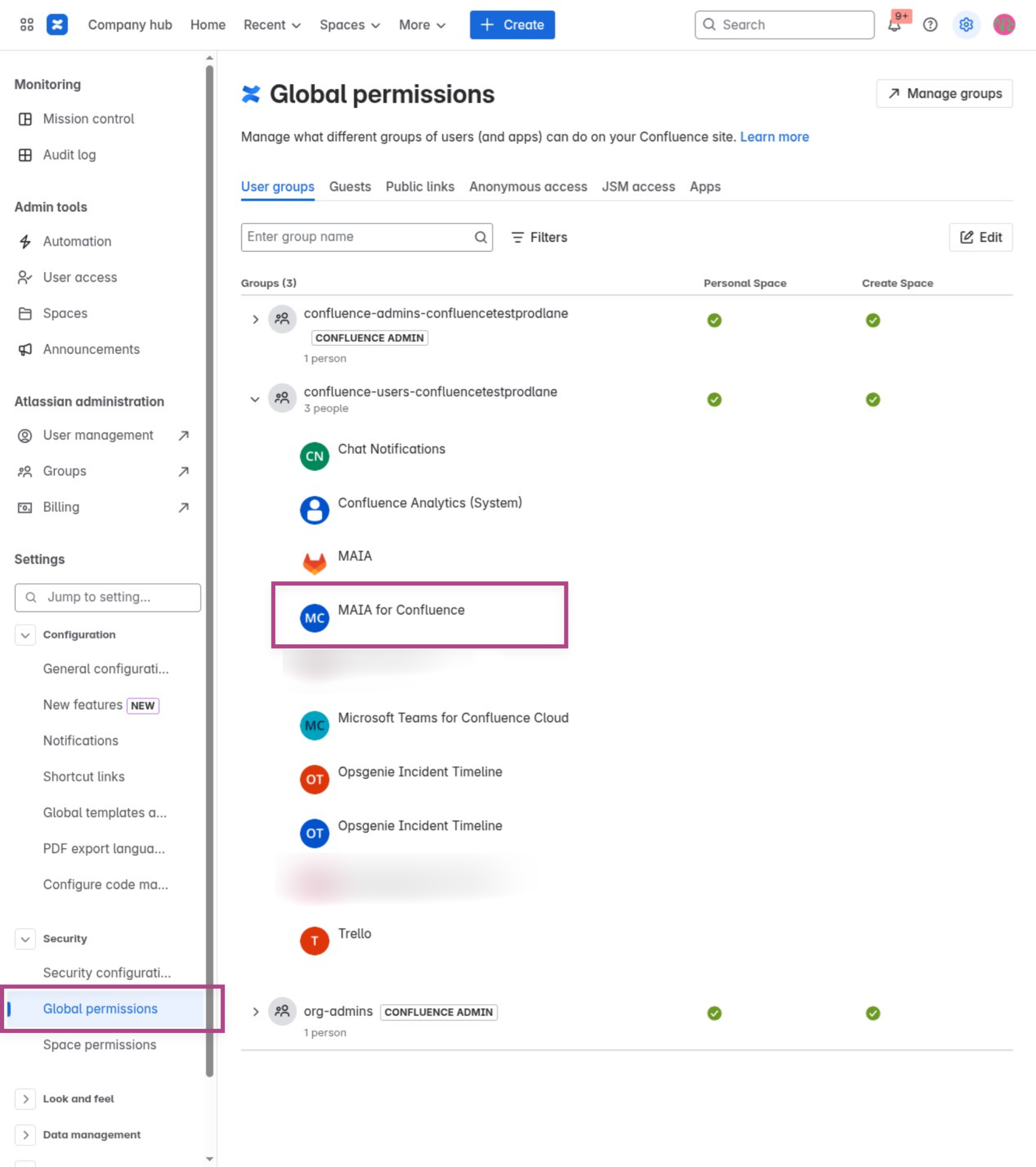
Section titled “Follow these steps”Step 1: navigate to global permissions
Section titled “Step 1: navigate to global permissions”Go to Settings → Global permissions and confirm that MAIA for Confluence is listed.
Step 2: access space permissions
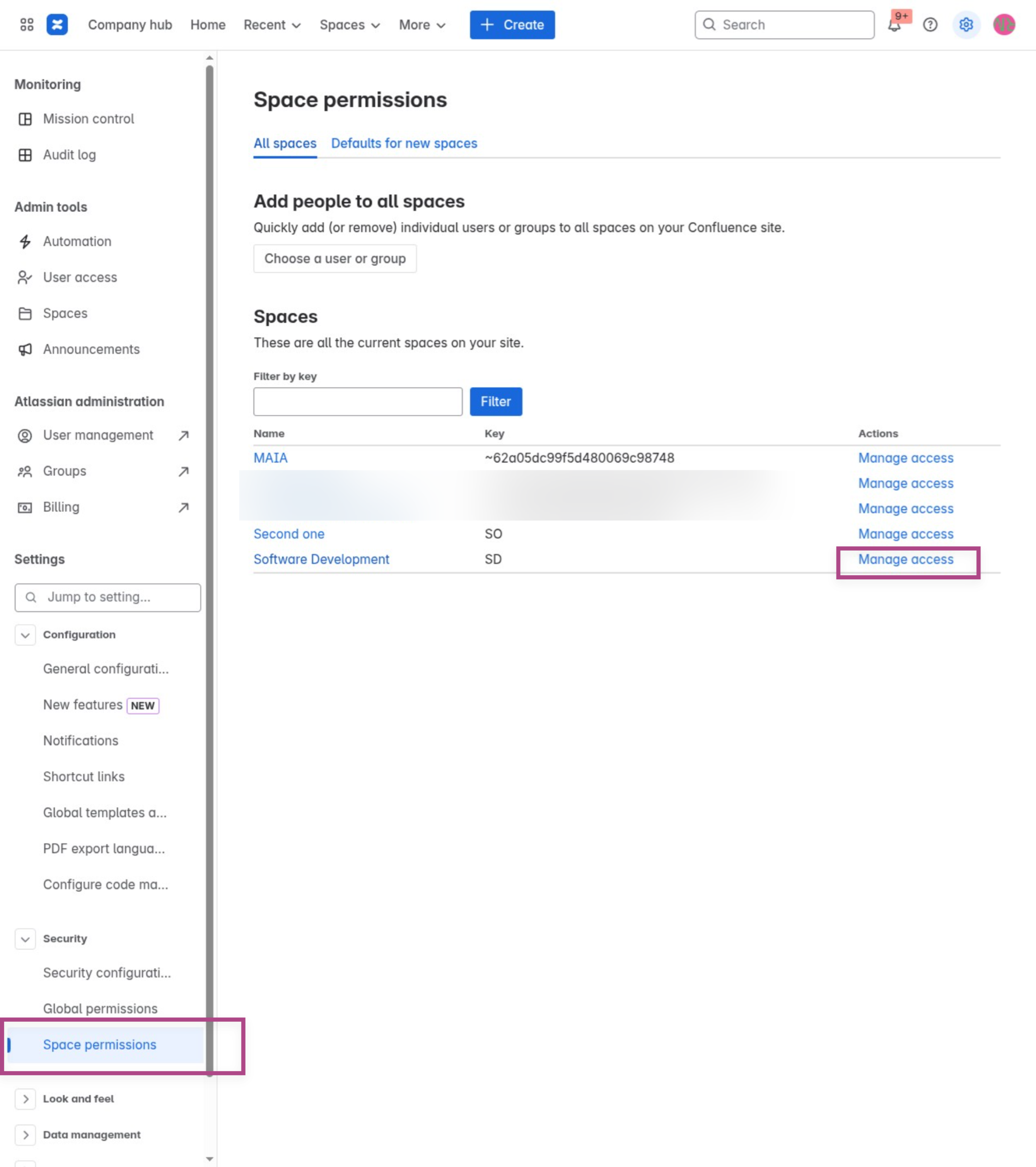
Section titled “Step 2: access space permissions”Under Settings, select Space permissions.
Find the private space and click Manage access.
Step 3: add the MAIA user to the space
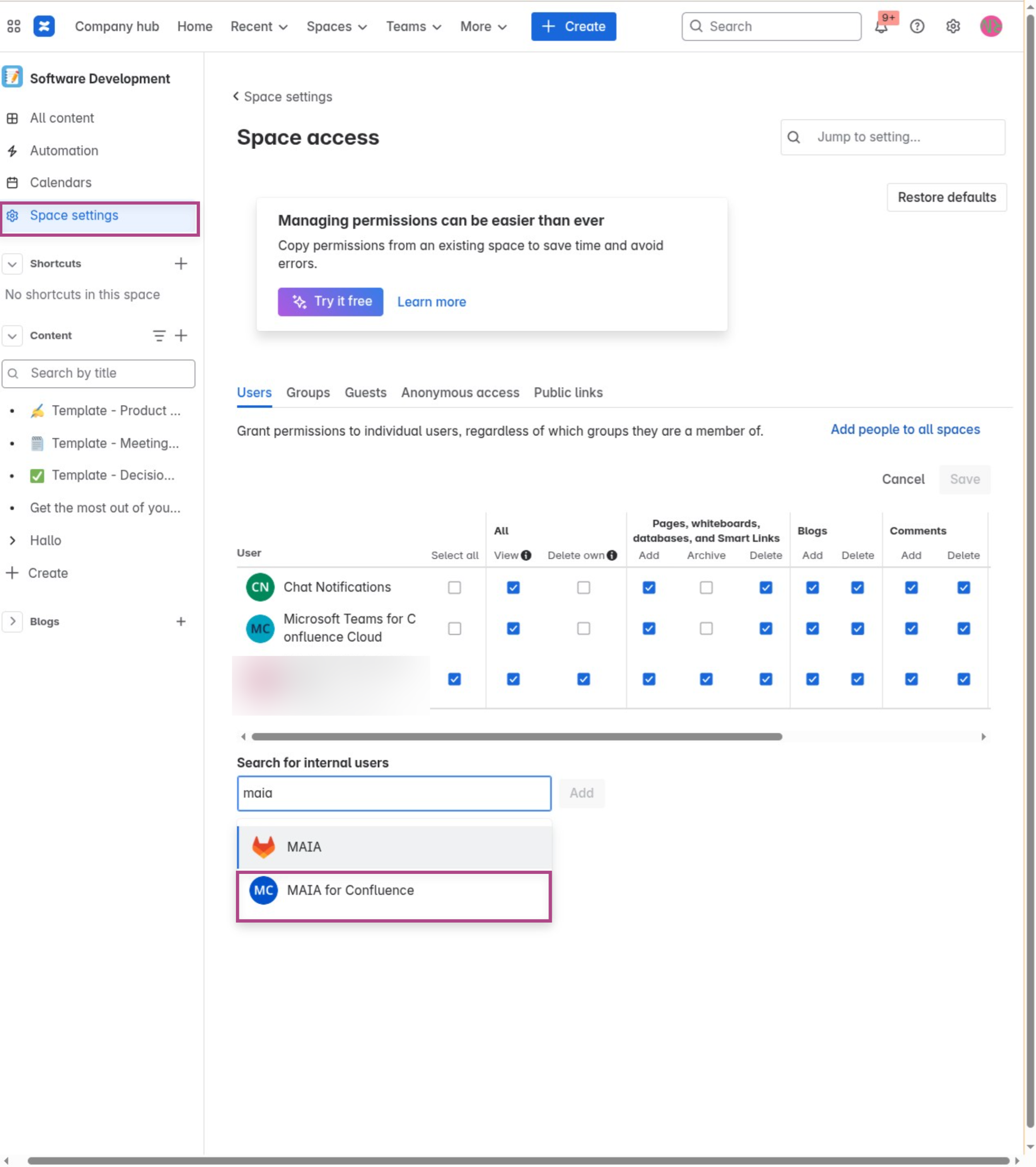
Section titled “Step 3: add the MAIA user to the space”Go to Space settings → Space access.
Use the search field to find “MAIA for Confluence” and add the user.
Step 4: set appropriate permissions
Section titled “Step 4: set appropriate permissions”Check the required permissions (e.g., View) for the MAIA for Confluence user and click Save.
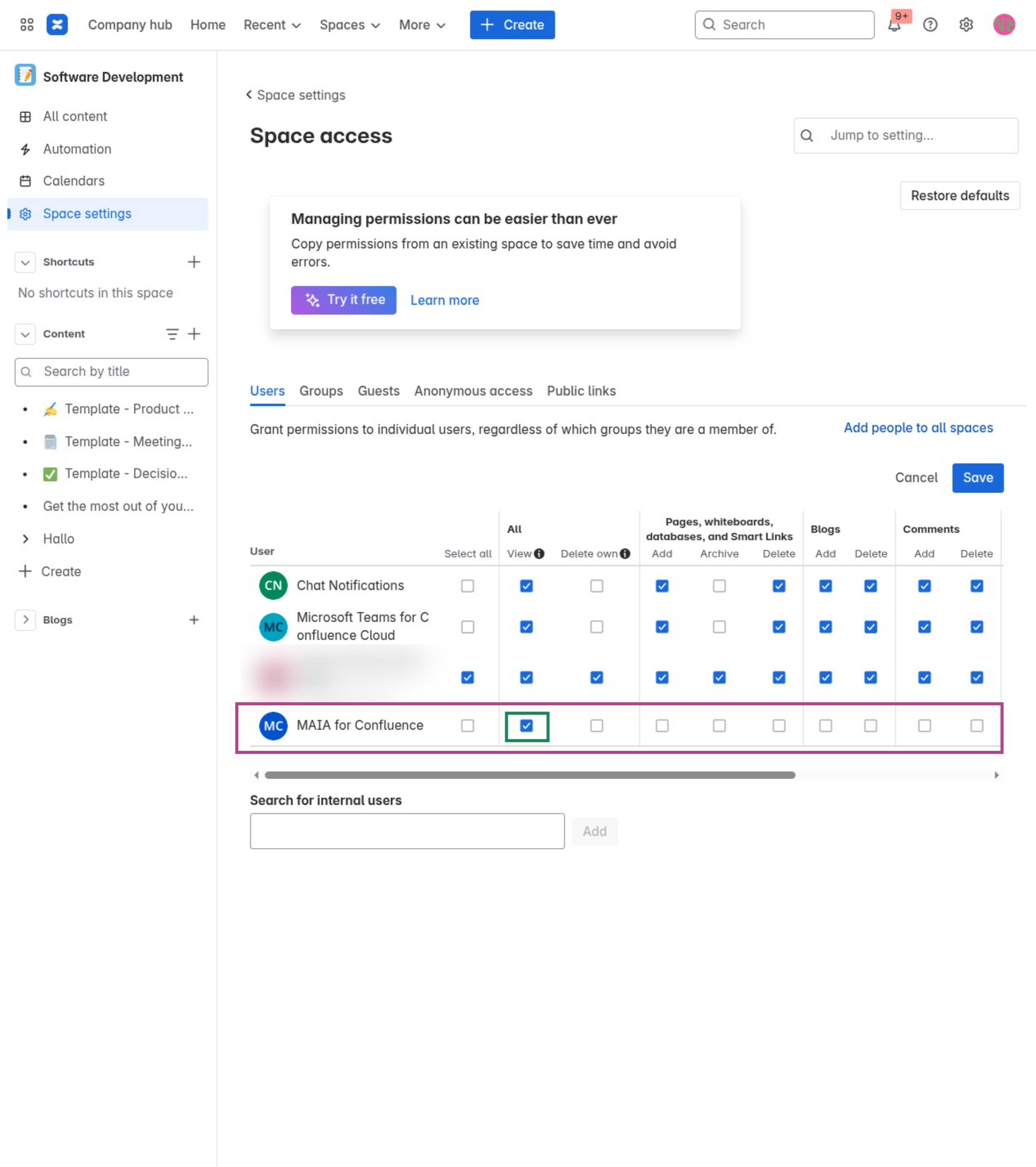
Your private space is now accessible to MAIA for Confluence and ready for synchronization or visibility in the app.
Don’t worry – the space is still only visible to authorized users.