
Guide: synchronization of SharePoint permissions in MAIA
Guide: synchronizing SharePoint permissions in MAIA
Section titled “Guide: synchronizing SharePoint permissions in MAIA”To ensure maximum data security and integrity, MAIA uses strict logic when synchronizing content and permissions from your SharePoint environment. This guide explains how our system interprets permissions and how you can optimally configure your SharePoint sites.
Our security approach: "security first"
Section titled “Our security approach: "security first"”When transferring access rights, MAIA follows the principle of verified access control. Specifically, this means:
-
No one sees more in MAIA than they are allowed to see in SharePoint.
-
When in doubt, MAIA synchronizes more restrictively to ensure that confidential information remains protected.
We support modern, transparent permission structures via Microsoft Entra ID (formerly Azure AD). We deliberately exclude outdated or non-transparent rules to minimize security risks.
How does MAIA handle “everyone except external users”?
Section titled “How does MAIA handle “everyone except external users”?”Since release 1.17, MAIA recognises sharing with "Everyone except external users". In MAIA, all internal users of your tenant can see files shared this way; guest accounts cannot.
One limitation remains: if "Everyone except external users" is nested inside a custom site group, MAIA does not evaluate it. In that case, grant the rights directly to users or to Entra ID groups.
Other rule-based legacy permissions that are not explicitly stored in the central directory (Entra ID) are still ignored. MAIA synchronises direct user rights, group rights and the tenant-wide sharing described above, so permissions work exactly as you defined them.
Supported configurations for synchronization
Section titled “Supported configurations for synchronization”In order for your employees to access the relevant SharePoint content in MAIA, permissions must be explicitly assigned. MAIA supports the following two methods:
Access via Microsoft 365 groups (recommended)
Section titled “Access via Microsoft 365 groups (recommended)”This is the cleanest and easiest method to manage.
-
Administration: You maintain the members in a Microsoft 365 group in Entra ID (Azure AD).
-
Assignment: This group is stored once in the SharePoint site.
-
Advantage: You only need to add new employees to the group – they will then automatically receive access in SharePoint and MAIA.
-
Link to administration: Microsoft Entra group management
Direct user assignment
Section titled “Direct user assignment”Alternatively, permissions can be assigned directly at the individual level.
- Procedure: The individual user is added by name in the permission settings of the SharePoint site.
Instructions: how to add users or groups in SharePoint
Section titled “Instructions: how to add users or groups in SharePoint”To ensure that MAIA can apply the permissions correctly, please add users or Microsoft 365 groups directly in the SharePoint cloud (SharePoint Online):
-
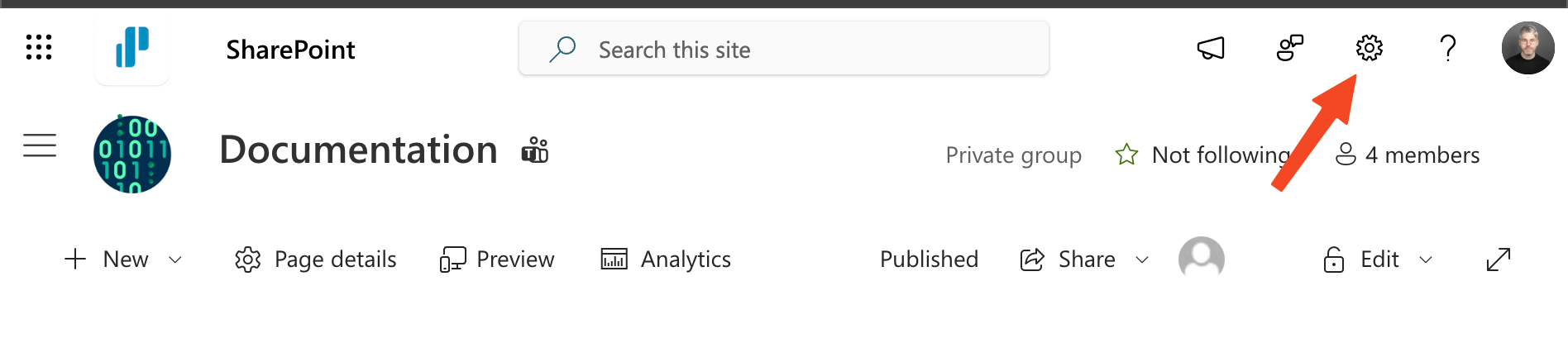
Open the SharePoint site to which access is to be granted.
-
Click on the gear icon (settings) in the top right corner.
-
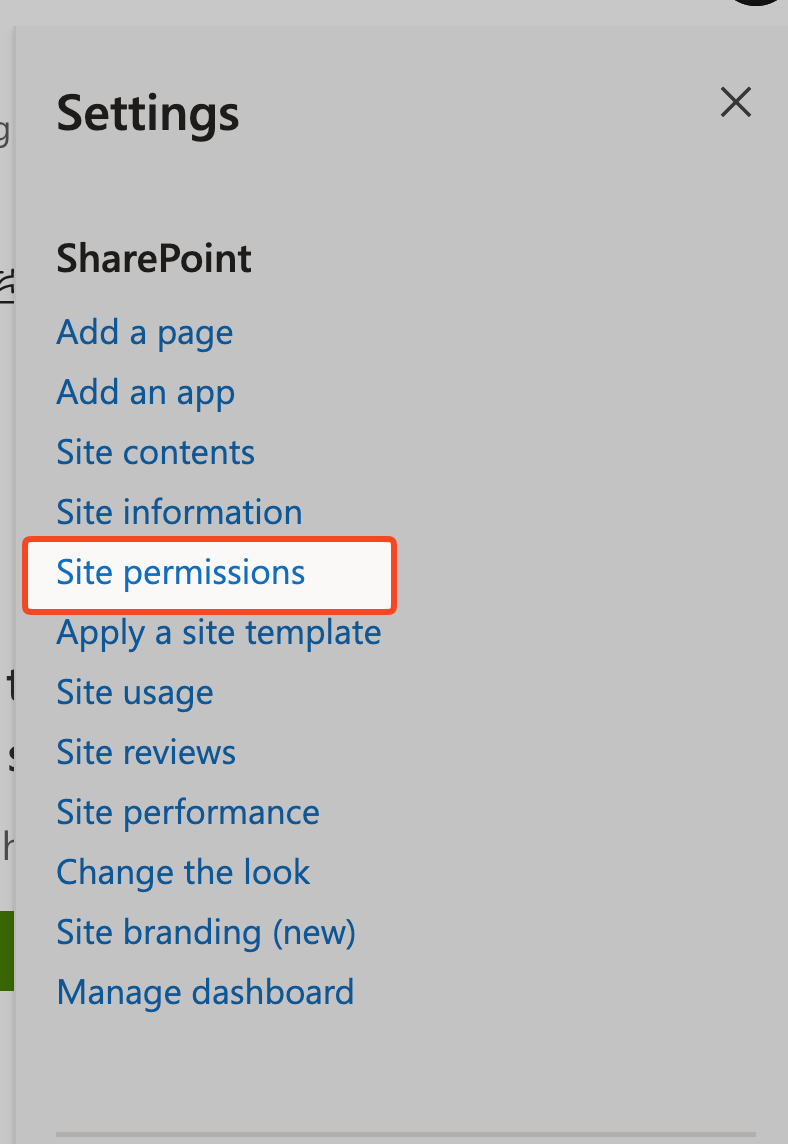
Select Site Permissions from the menu.
-
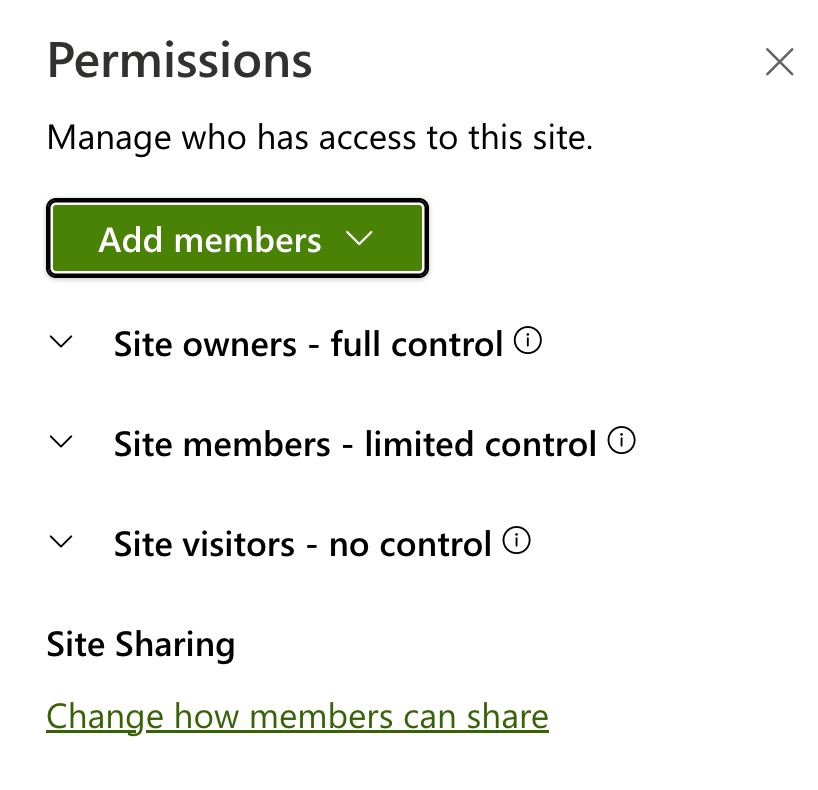
Click on the Add members button (or "Share site" depending on the view).
-
Now enter the name of the Microsoft 365 group (recommended) or the individual user.
-
Select the appropriate permission level (e.g., "Members" for editing rights or "Visitors" for read access).
-
Click Add or Share.
Important note on synchronization time
Section titled “Important note on synchronization time”Please note that changes to group memberships or direct permissions take some time to propagate through all Microsoft systems and then to MAIA.
After you have added a group or user, it can take up to 24 hours for these changes to be fully processed by MAIA and for the corresponding content to be visible to the user in MAIA.