
Answer settings
Choose how thoroughly MAIA answers, whether it checks its statements against your sources and which AI model it uses.
Answer settings let you choose, for each message, how MAIA answers:
- Effort per answer: how much time and research MAIA puts into an answer.
- Verify answers: whether MAIA also checks each statement against your sources.
- AI model: whether MAIA picks the model itself (“Auto”) or you choose one.
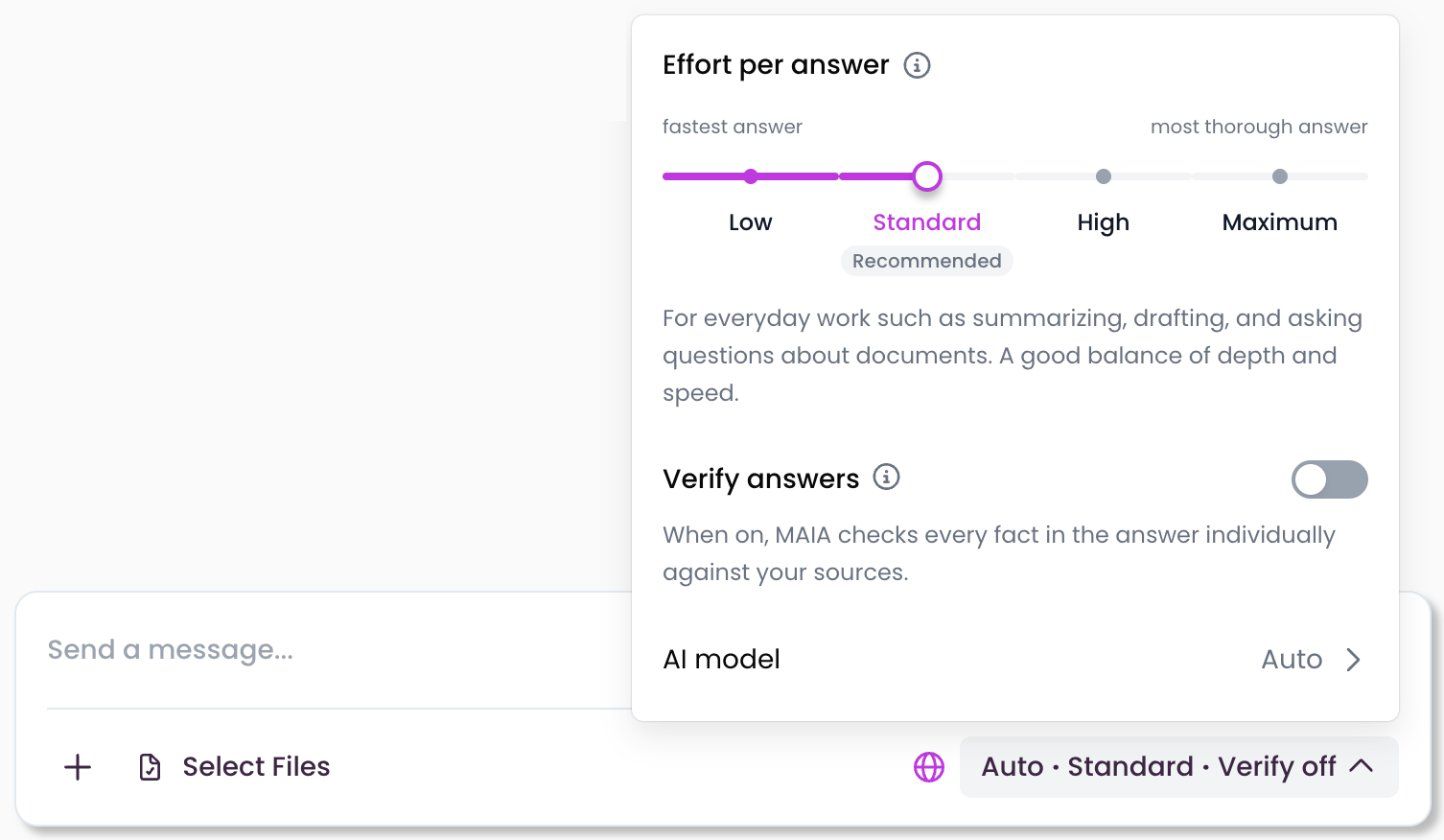
The current settings are shown to the right below the input field, for example “Auto · Standard · Verify off”.
Change the answer settings
Section titled “Change the answer settings”- Click the current settings to the right below the input field, for example “Auto · Standard · Verify off”.
- Pick a level under “Effort per answer”.
- Switch on “Verify answers” if you need it.
- Click “AI model” if you want to use a specific model, and pick it from the list.
- Close the menu by clicking next to it or pressing Esc, then send your message.
The (i) icon next to “Effort per answer” and “Verify answers” shows a short explanation.
Effort per answer
Section titled “Effort per answer”The higher the level, the more MAIA researches and checks before it answers. The answer then takes longer.
| Level | Suited for |
|---|---|
| Low | Short, everyday questions and quick rewrites. Fastest answer, least depth. |
| Standard (recommended) | Everyday work such as summarizing, drafting, and asking questions about documents. A good balance of depth and speed. |
| High | Comparing several documents or drafting longer material. Takes longer and performs deeper work. |
| Maximum | Complex questions with many sources. Most depth. |
“Standard” is the default and is enough for most questions. “Maximum” takes much longer than the other levels, often several minutes.
While MAIA works, you see every step of its research below your question. If what it has found so far is enough, you can cut it short with “Quick answer”. See How MAIA researches.
Verify answers
Section titled “Verify answers”With “Verify answers” on, MAIA runs an extra pass and checks each statement of its answer against your sources. The numbers after the statements then show whether a statement is confirmed, inferred or not checked. Answers take longer with verification.
Verification is off by default. When it's worth using and how to read the results is explained in Verify answers.
If “Verify answers” isn't in the menu, the feature isn't enabled for your workspace. If you can't switch it on, your usage allowance for verification is used up. It resets regularly.
AI model
Section titled “AI model”Clicking “AI model” opens the list of models.
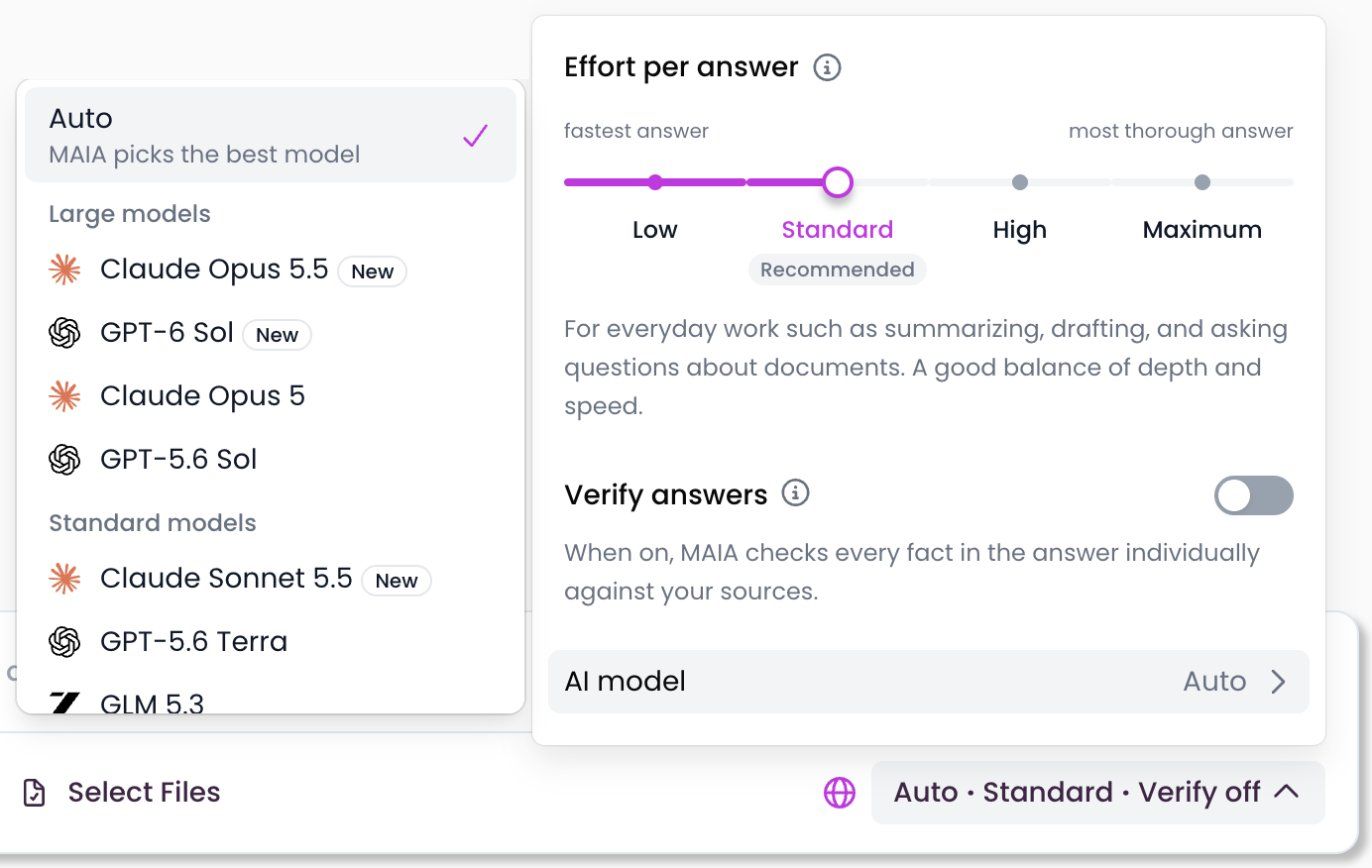
- Auto: MAIA picks the right model for each message, based on your question, the selected files and the effort level. This is the default.
- A specific model: Models are grouped by size: “Large models”, “Standard models” and “Small models”. Each model shows its maker's logo, and new models are marked “New”.
The model “Auto” picked is shown on your message. Which models are available and what they're good for is described in the Model Selection Reference and the LLM Guide.
Good to know
Section titled “Good to know”- Settings apply per chat. When you open an earlier chat, MAIA restores the settings of its latest message, on any device.
- Default for new chats: What you choose for the first message of a new chat becomes the default for your next new chats. Changing the settings in an existing chat doesn't change the default.
- Model no longer available: If you chose a model that no longer exists, the menu shows a notice and MAIA switches to an available model.
- Workflows: Each workflow step has its own answer settings. Your chat settings don't apply there. See Workflows.
Frequently asked questions
Section titled “Frequently asked questions”Where did Agent Mode go? MAIA now researches in several steps for every message. There's no separate switch for it any more. You control how thorough it is with the effort level.
Where did High Precision Mode go? It's now called “Verify answers” and sits in the answer settings instead of the “+” menu.
Which level should I use? Start with “Standard”. If the answer is too short or sources are missing, ask again with “High” or “Maximum”. “Low” is enough for quick rewrites.
Questions or feedback? Write to us at support@getmaia.ai.