
Set up your workspace and add users
Set up your workspace
Section titled “Set up your workspace”Select your workspace
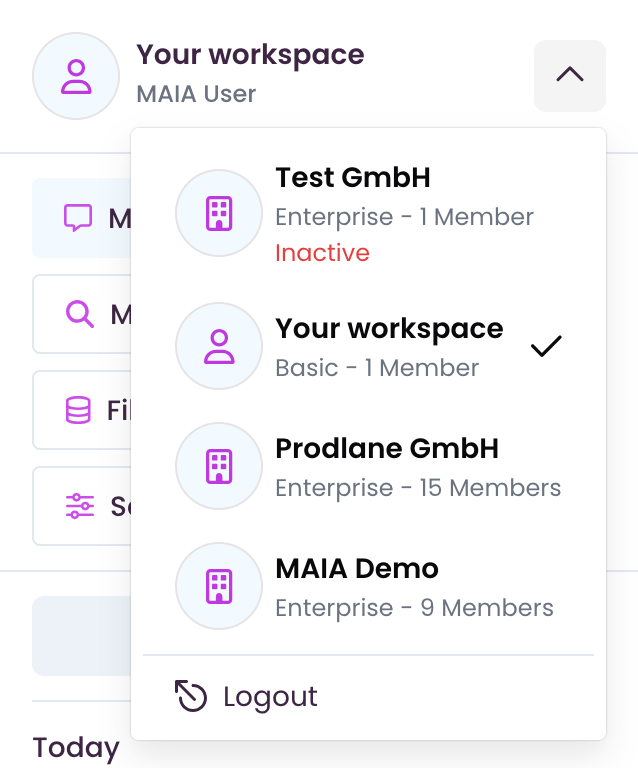
Section titled “Select your workspace”Select your desired workspace from the workspace drop-down menu.
Name your workspace
Section titled “Name your workspace”This section applies to admins and owners.
-
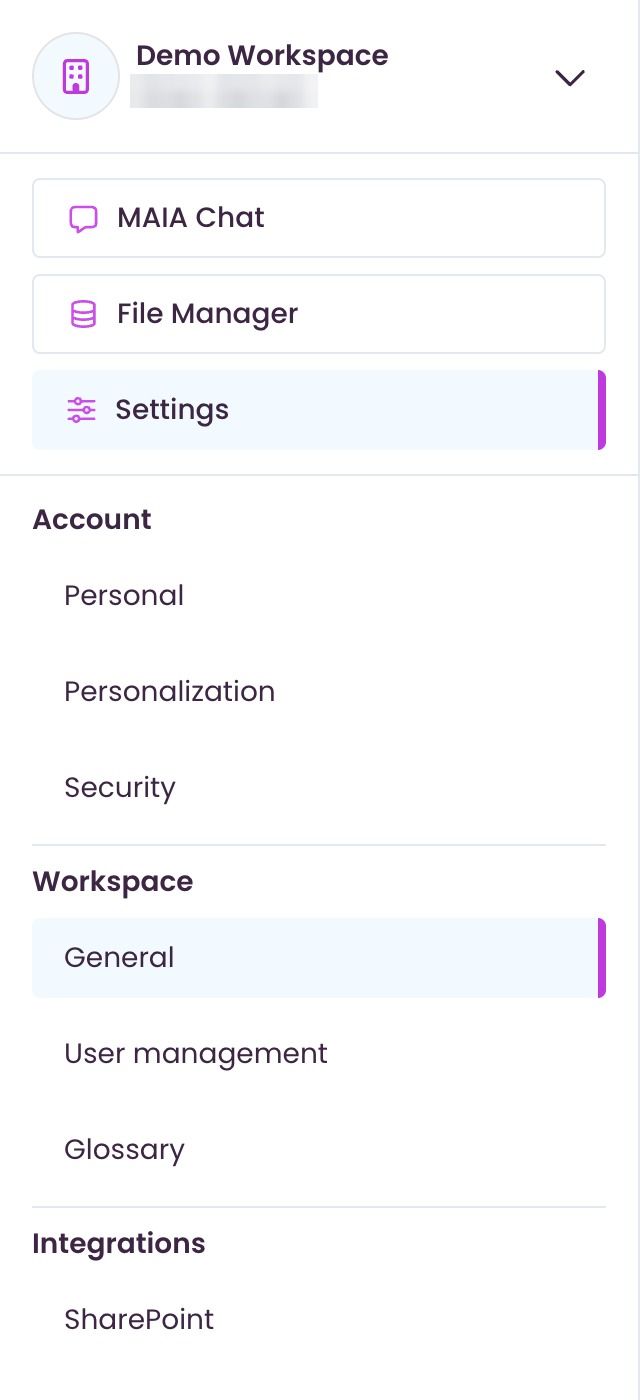
Navigate to “Settings” → “Workspace” → “General” → “Workspace name”
-
Enter the desired workspace name and click on ‘Save’ in the top right-hand corner.

Add users
Section titled “Add users”This section applies to admins and owners.
There are two way to add new Users to your workspace:
Invite users through user management
Section titled “Invite users through user management”-
Navigate to “Settings” → “Workspace” → “User management”
-
Click on “+ Add User”

-
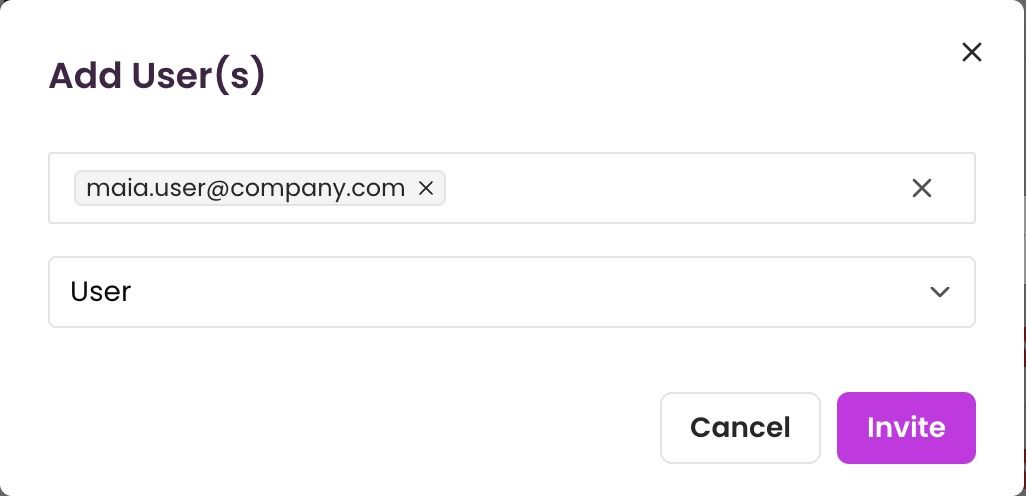
Enter the e-mail address of the desired user and select their role in the workspace.
-
Click on “Invite”
-
The user is now added and can select the workspace via the workspace drop-down menu.
Invite users with an invitation link
Section titled “Invite users with an invitation link”-
Navigate to “Settings” → “Workspace” → “General” → “Invitation link”
-
Click on “Generate new”

-
The invitation link is now ready for use and can be shared with all relevant people who are automatically added to the workspace via the link.
-
(As soon as all persons have joined the workspace, it should be deactivated again by an admin or the owner).