
How MAIA researches
How MAIA researches your questions in several steps, how to follow each step and how to cut it short with “Quick answer”.
MAIA doesn't answer your questions in a single step. She plans the research herself, searches several knowledge sources, checks interim results and keeps going until the answer is complete. This applies to every message, with or without selected files. It pays off most for larger questions, for example when you:
- need every product type from a large product catalog
- want to compare color codes or standards across many documents
- are researching competitors and want the results checked right away
You set how thoroughly MAIA researches with the “Effort per answer” in the answer settings. Higher levels search more sources and take longer.
Follow the research
Section titled “Follow the research”- Step display: Below your question, a line shows what MAIA is doing right now, such as planning the next step, searching the web or thinking, along with the number of steps and the time so far. Once the answer is ready, the line reads “Agent activity”, for example “Agent activity · 7 steps · 22 s”.
- Frame: Question and answer sit in a frame labeled “Agent”.
- Model: Your message and the answer show which model MAIA used, for example “Model: GPT-6 Luna”.
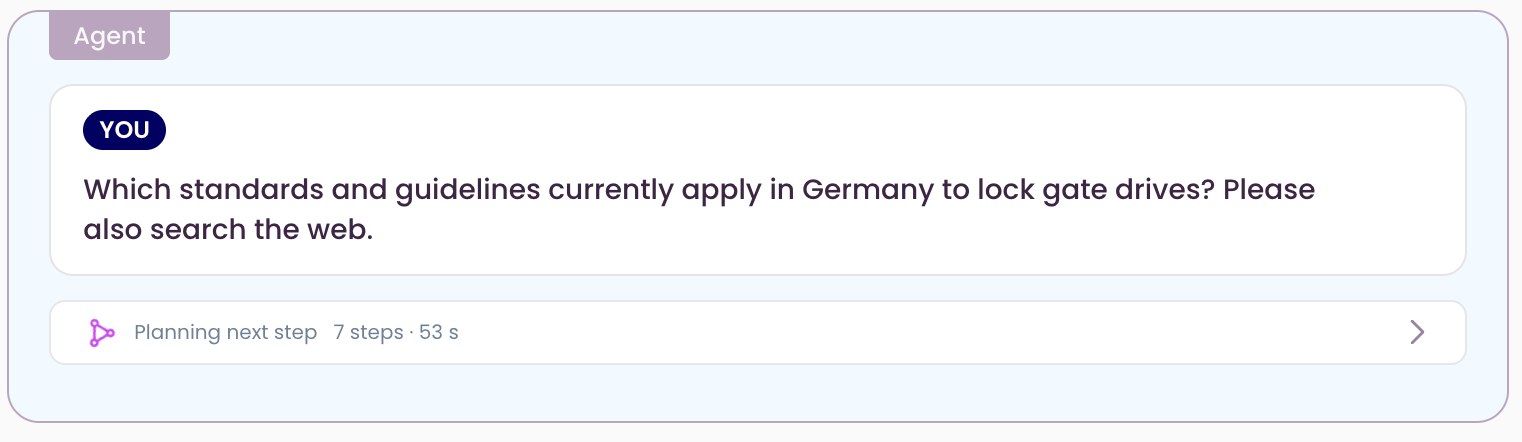
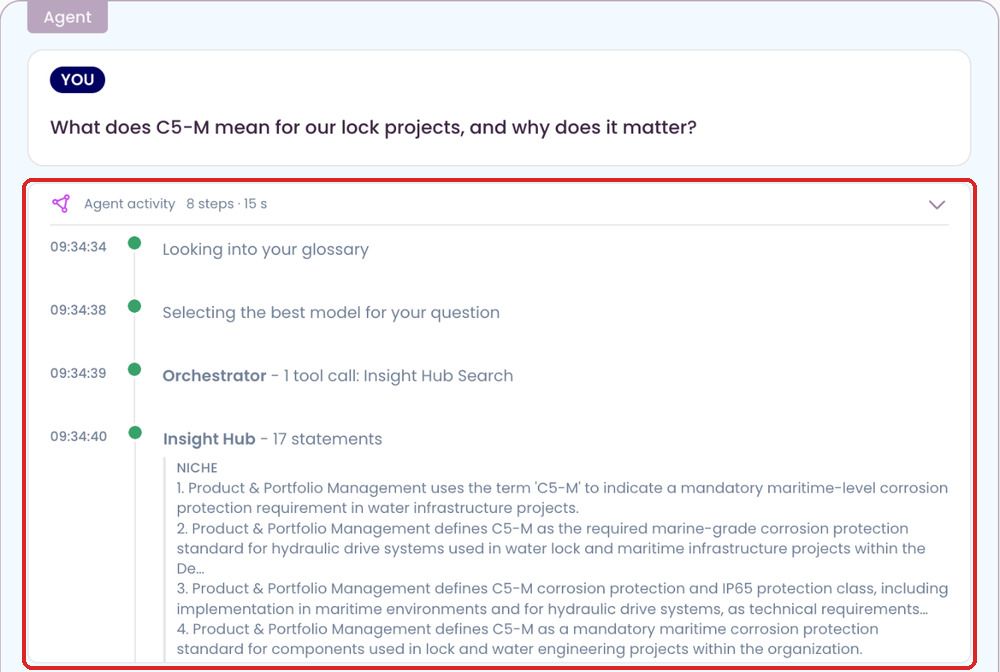
View the details: Click the “Agent activity” line to expand it. You then see every step with its time, for example “Looking into your glossary”, “Selecting the best model for your question” or a search in the Insight Hub. For many steps, MAIA also shows what she found. This lets you follow what the answer is based on.
Quick answer
Section titled “Quick answer”Sometimes what MAIA has found so far is enough. You don't have to wait for the research to finish.
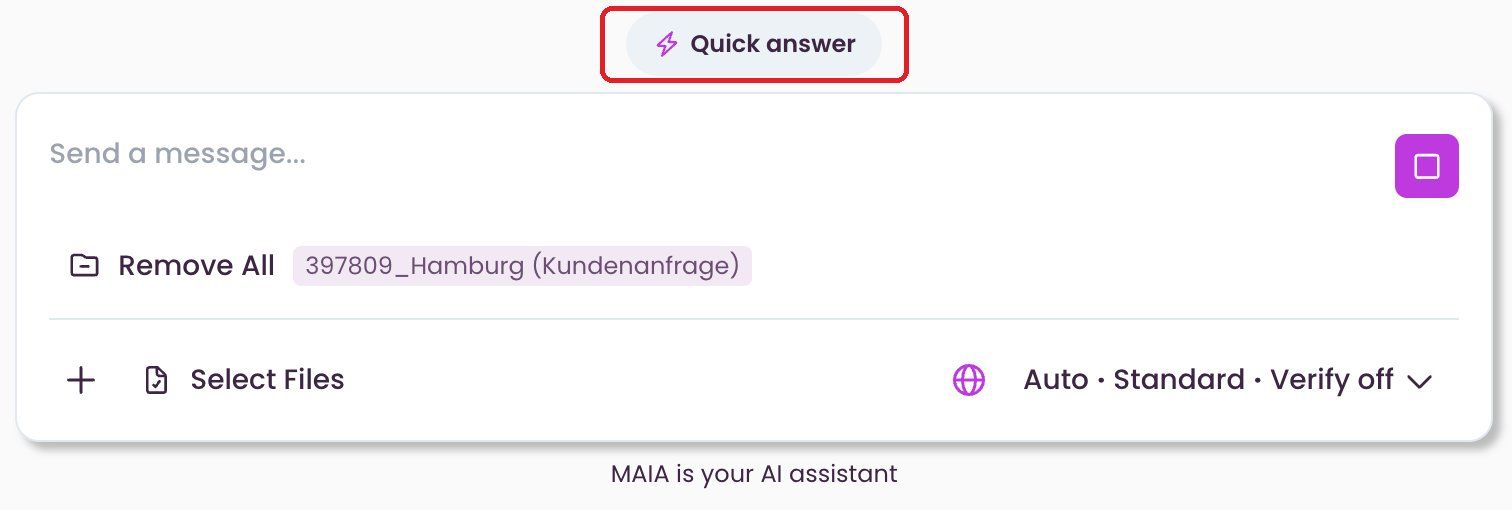
The button appears while MAIA is working on the answer, if “Verify answers” was off when you sent the request. It disappears once the answer is finished.
-
While MAIA is researching, click “Quick answer”. The button sits centred above the input box.
-
MAIA lets the steps already running finish, but starts no new research.
-
She answers with the information gathered up to that point.
The answer includes a note that you cut the research short. MAIA also explains which research was finished and what the answer is based on: selected documents, web results or general model knowledge.
Check important details in a quick answer with extra care.
Good to know:
- There's no “Quick answer” if “Verify answers” was on when you sent the request.
- The button disappears as soon as MAIA starts writing the answer.
- The stop icon cancels the request. You won't get an answer then.
- If you often only need a quick answer, set the effort to “Low”.
What else MAIA can do along the way
Section titled “What else MAIA can do along the way”- Analyzing Excel spreadsheets: MAIA reads .xlsx files. She backs every figure with the cell it comes from and recalculates sums and counts herself. Older .xls files, files with macros and password-protected files are not supported. More in Analyze Excel files.
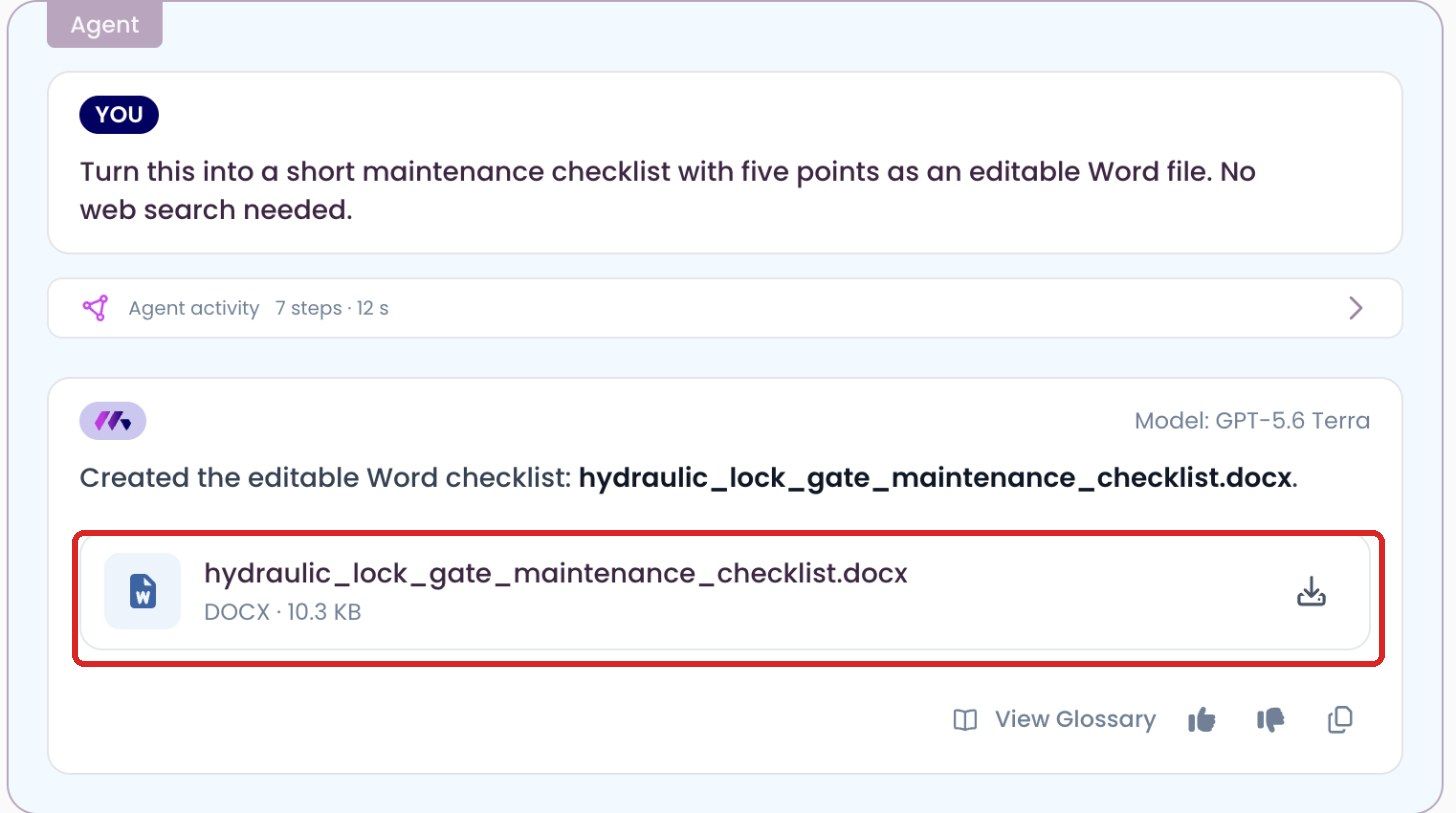
- Creating files: On request, MAIA creates a PDF, a Word document or a simple Excel spreadsheet. See Upload and create files in chat.
- Checking statements: With “Verify answers”, MAIA also checks her statements against the sources. See Verify answers.
Where is the “Agent-Mode” toggle? It's gone. MAIA now researches in several steps for every message. You control how thoroughly with the effort level in the answer settings.
Do I have to select files? No. Without a selection, MAIA uses the sources available to her, for example web search if it's switched on. If you select files, MAIA sticks to your selection.
Why does the answer take so long? MAIA searches more sources and checks interim results, more so at higher effort levels. If the research so far is enough for you, click “Quick answer”. For simple tasks, set the effort to “Low”.
Questions or feedback? Write to support@getmaia.ai.