
Your first chat with MAIA
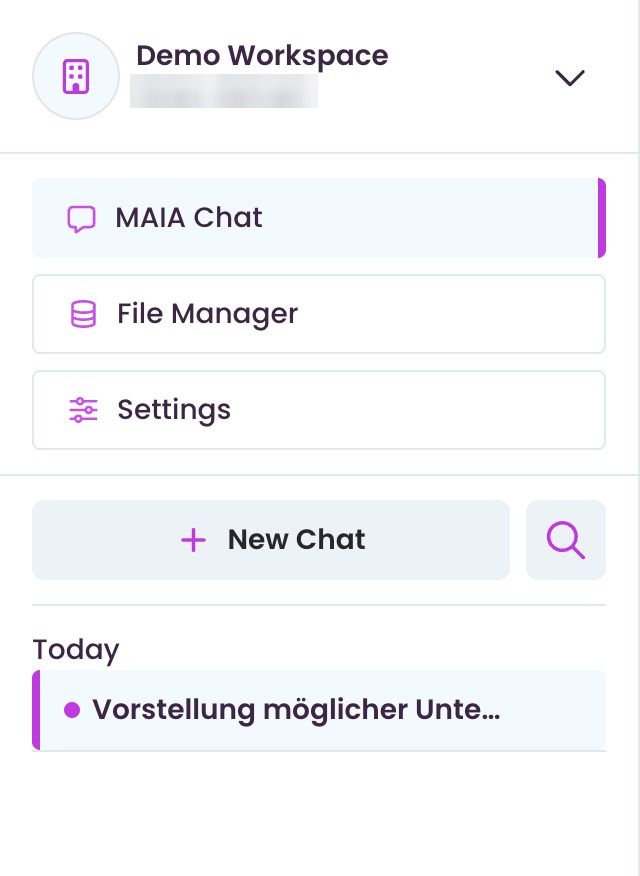
Open ‘MAIA Chat’ in the sidebar. Here you talk to MAIA about your stored documents or use MAIA's general AI knowledge.
Chatting with MAIA's general knowledge (no documents needed)
Section titled “Chatting with MAIA's general knowledge (no documents needed)”As with other AI assistants, you can ask MAIA questions that don't need internal company data.
-
Click ‘+ New Chat’.
-
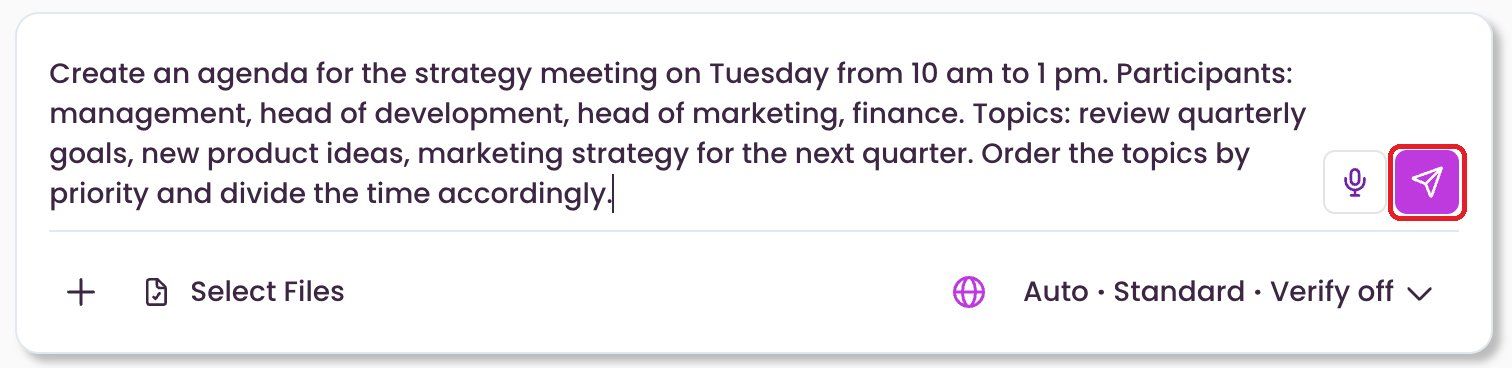
Type your question or task into the ‘Send a message…’ field. Instead of typing, you can also dictate using the microphone icon.
-
Click the arrow on the right of the input to send your request.
-
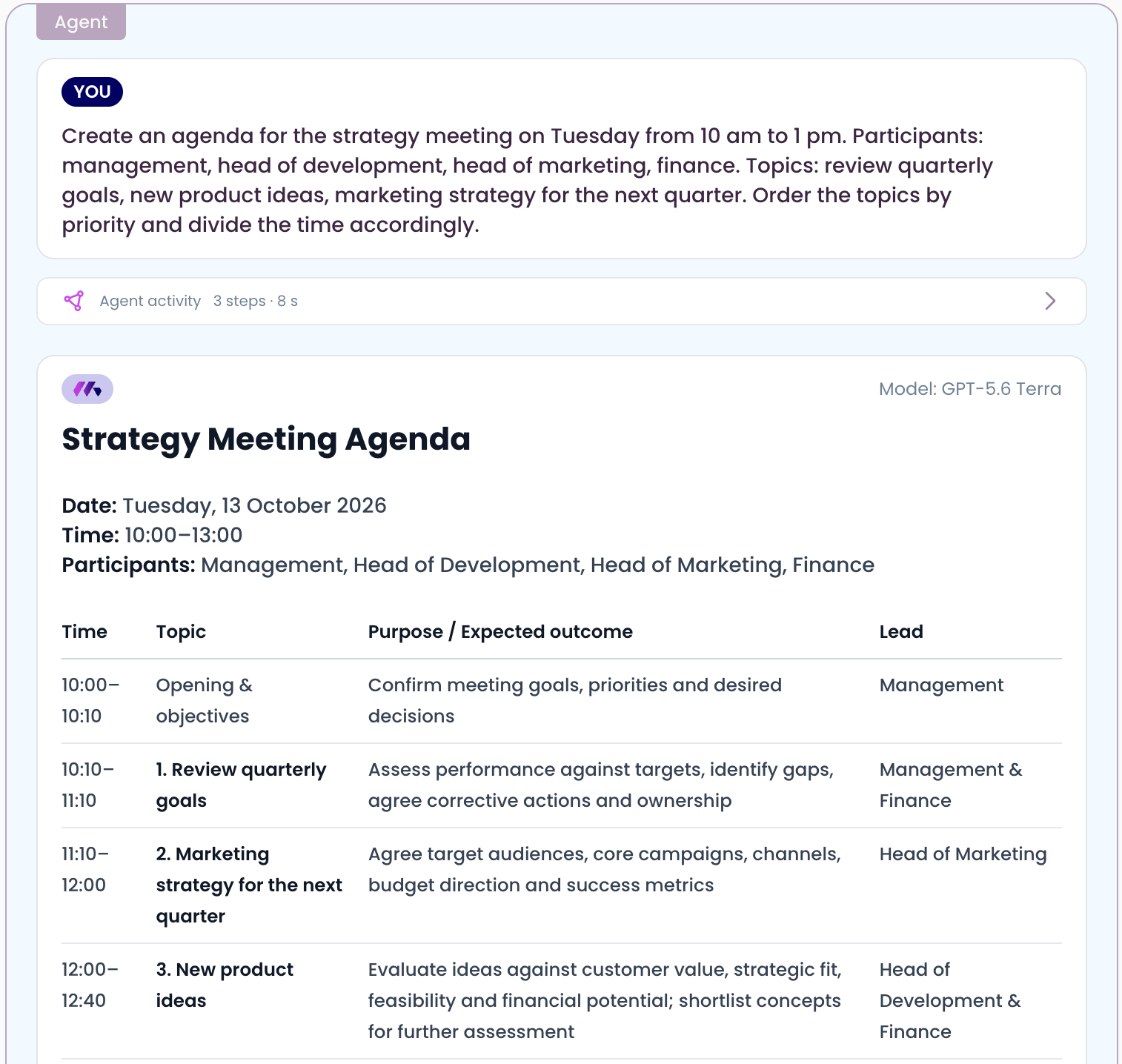
MAIA now creates an answer based on your task.
Chatting with internal knowledge and your own documents
Section titled “Chatting with internal knowledge and your own documents”For MAIA to include your documents, they need to be in the file manager (see Upload and share documents) or connected through an integration such as SharePoint, Confluence or Outlook. You can also upload individual files straight into the chat.
-
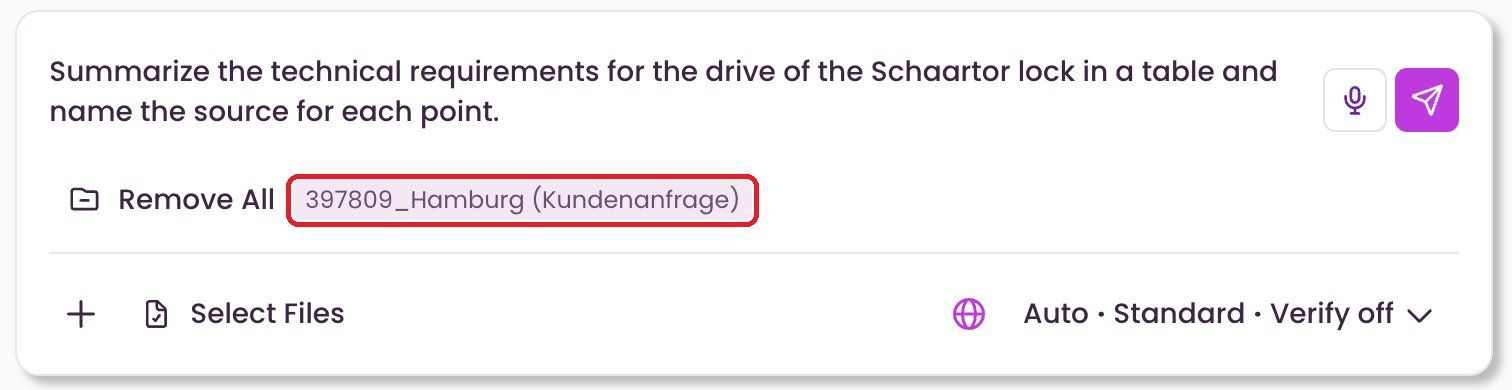
In the input, click ‘Select Files’.

-
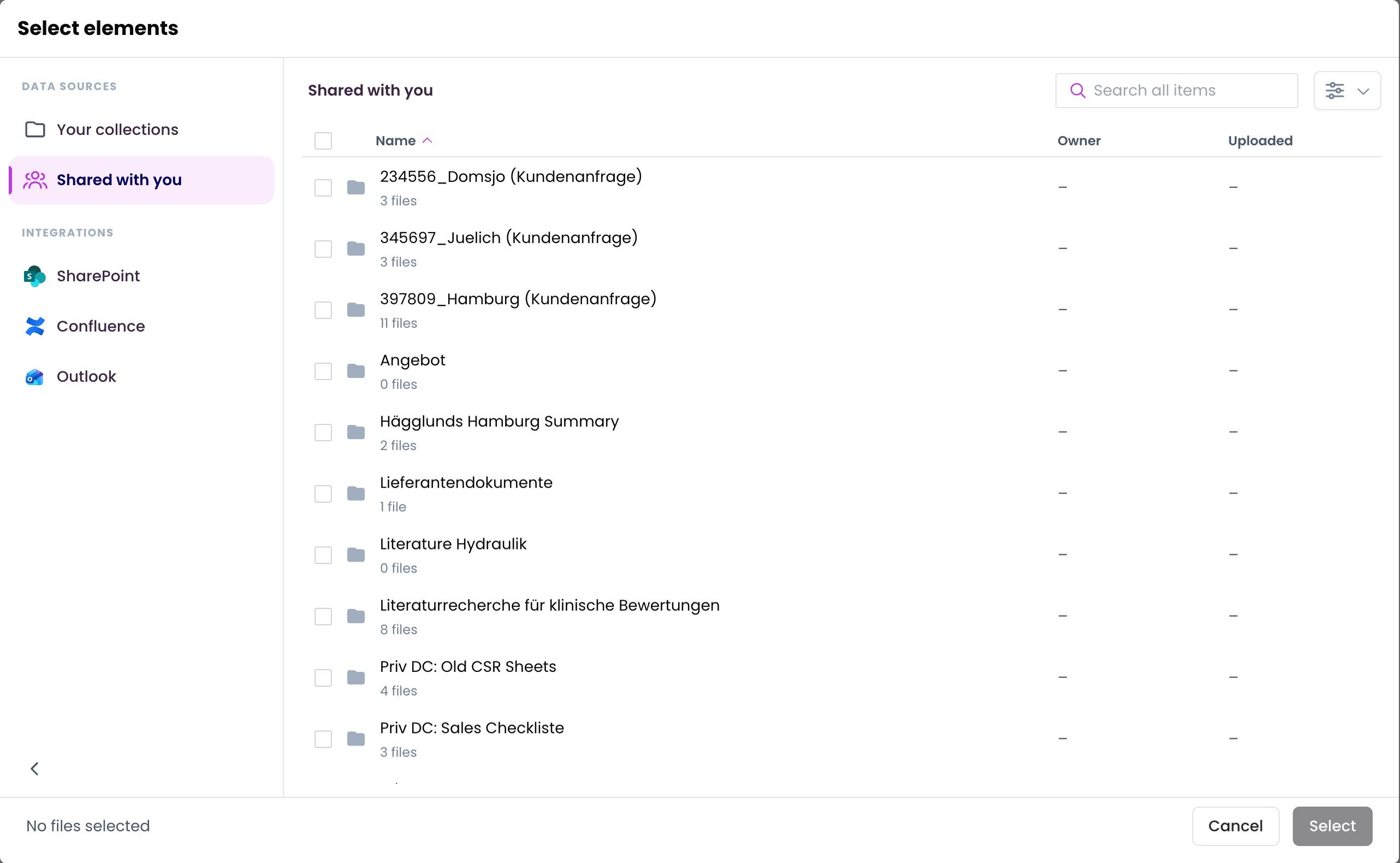
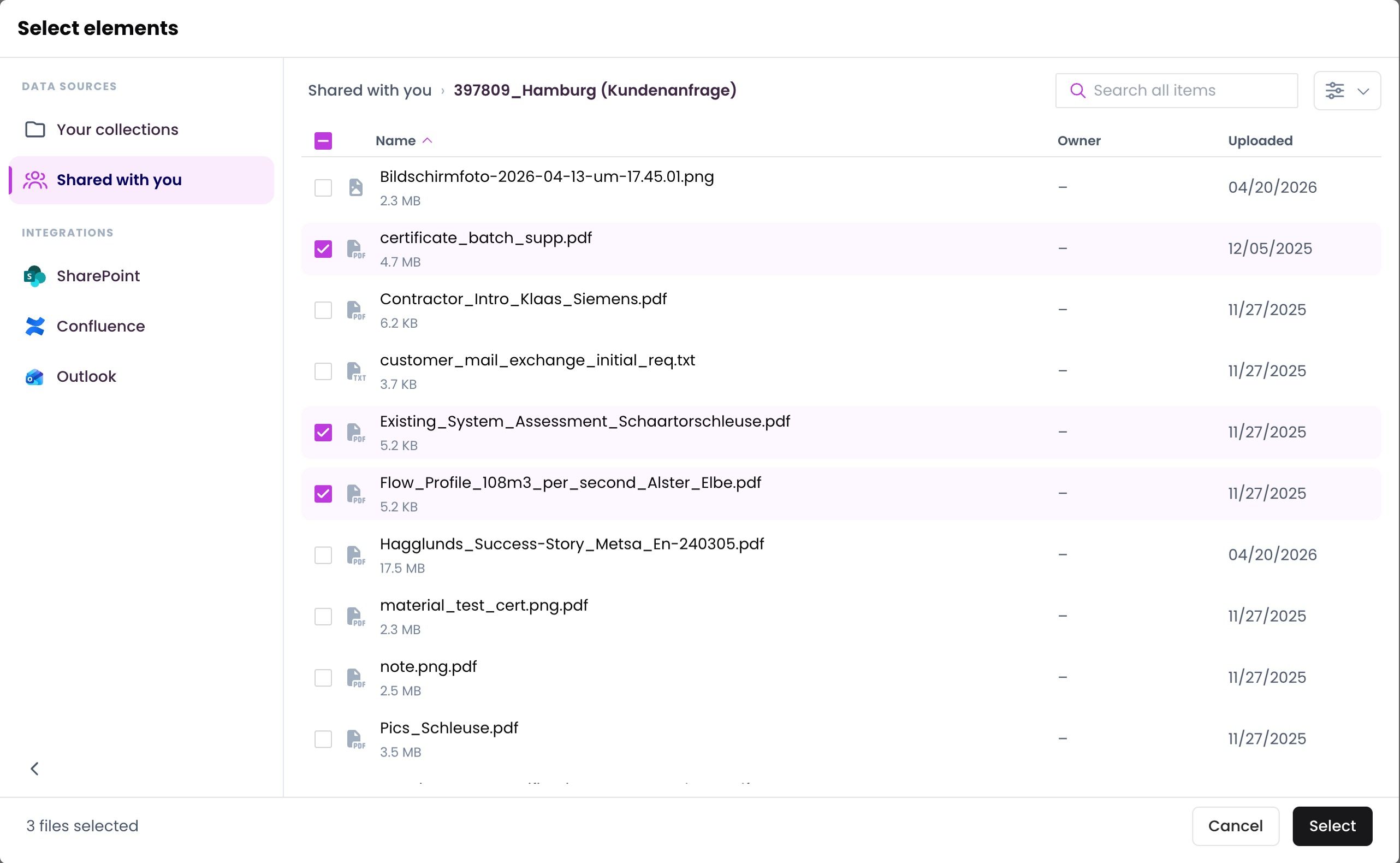
In the ‘Select elements’ dialog, choose the source on the left: ‘Your collections’, ‘Shared with you’ or an integration. Open a folder and tick the files you want. Ticking a collection selects all files in it.
-
Click ‘Select’. The files are now attached to the chat.
-
Ask your question or describe your task and send the message.
-
MAIA creates the answer based on the selected documents and shows which passages it comes from.
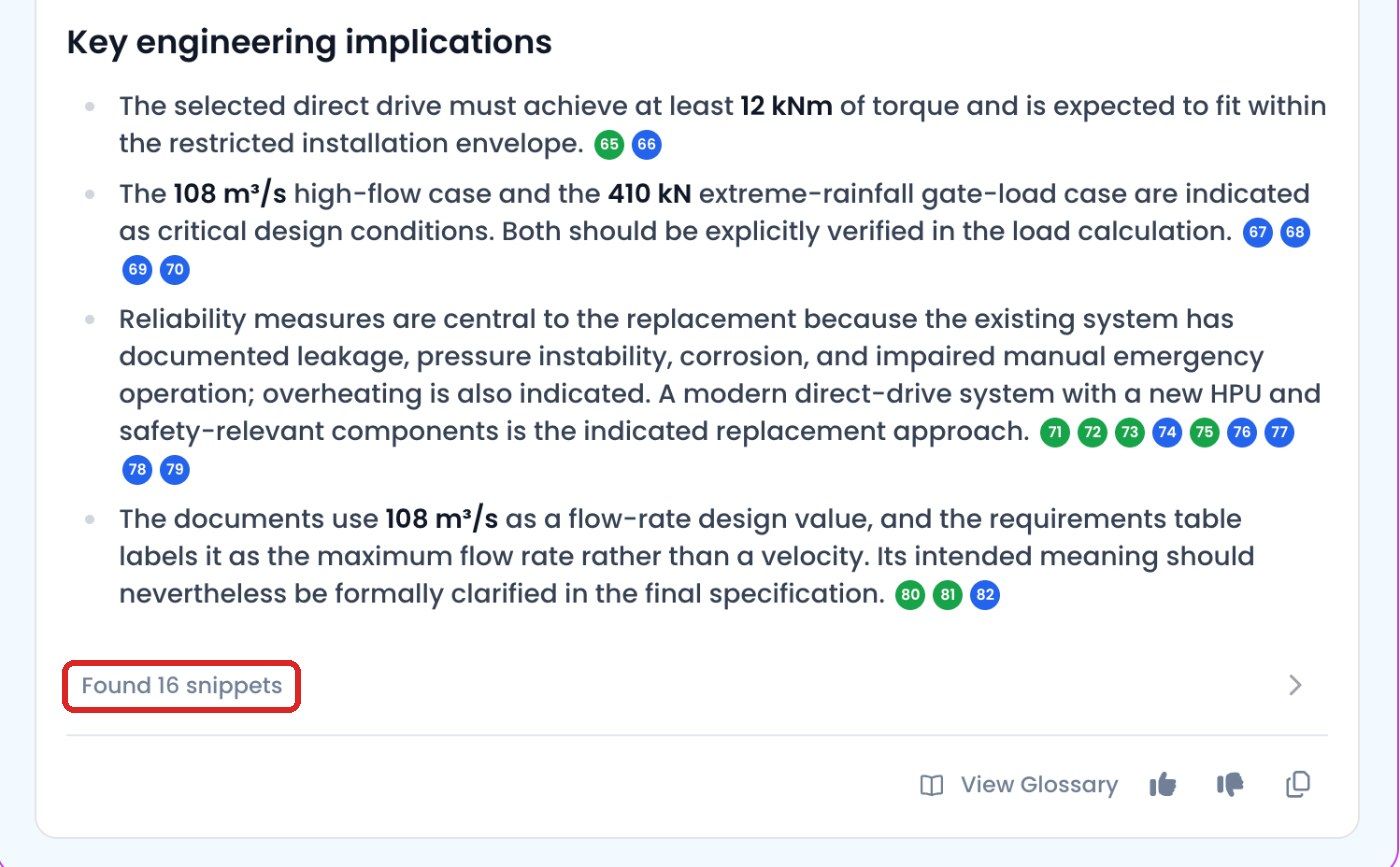
Tip: You can select and deselect files in the chat at any time, depending on which information MAIA should use.
The ‘+’ menu
Section titled “The ‘+’ menu”The ‘+’ in the input gives you:
- ‘Upload Files’: upload files straight into the chat, see Uploading and creating files in chat
- ‘Prompt Library’: use saved prompts, see Prompt Library
- ‘Select All’: select all files of a source at once
- A switch for ‘Web Search’ (Web search)
- A switch for ‘Insight Hub’, depending on your workspace (Insight Hub)
When web search is on, a globe icon appears on the right below the input.
Answer settings
Section titled “Answer settings”The answer settings are shown on the right below the input, for example ‘Auto · Standard · Verify off’. Click them to set how thoroughly MAIA answers (‘Effort per answer’), whether it checks its statements against your sources (‘Verify answers’) and which AI model it uses. The default is ‘Auto’: MAIA picks a suitable model for each request. See Answer settings and Model selection.
More chat features
Section titled “More chat features”- Searching chats: Use the magnifier next to ‘+ New Chat’ to search the titles and content of your chats. Enter at least three characters or a date.
- Working in the background: While MAIA creates an answer, you can open another chat or start a new one. The answer keeps running.
- Quick answer: You can cut a running research short, see How MAIA researches.
- Incognito chat: The hat icon at the top right starts a chat that feeds neither the Insight Hub nor your Personal Memory. You can only change this before you send your first message.
- Personal settings: Set how MAIA should answer you under Personalization.