
Model selection reference
Which AI models MAIA offers, how “Auto” picks a model and how you choose one yourself.
This reference explains (1) available models, (2) how “Auto” picks a model, and (3) how you choose a model yourself. You choose the model in the answer settings under “AI model”.
Available models
Section titled “Available models”Find the current list of available models on our model overview, including providers and hosting information.
In the answer settings, models are grouped by size. Each model shows its provider’s logo; new models are marked “New”. The screenshot below illustrates the controls; the selection of models may change.
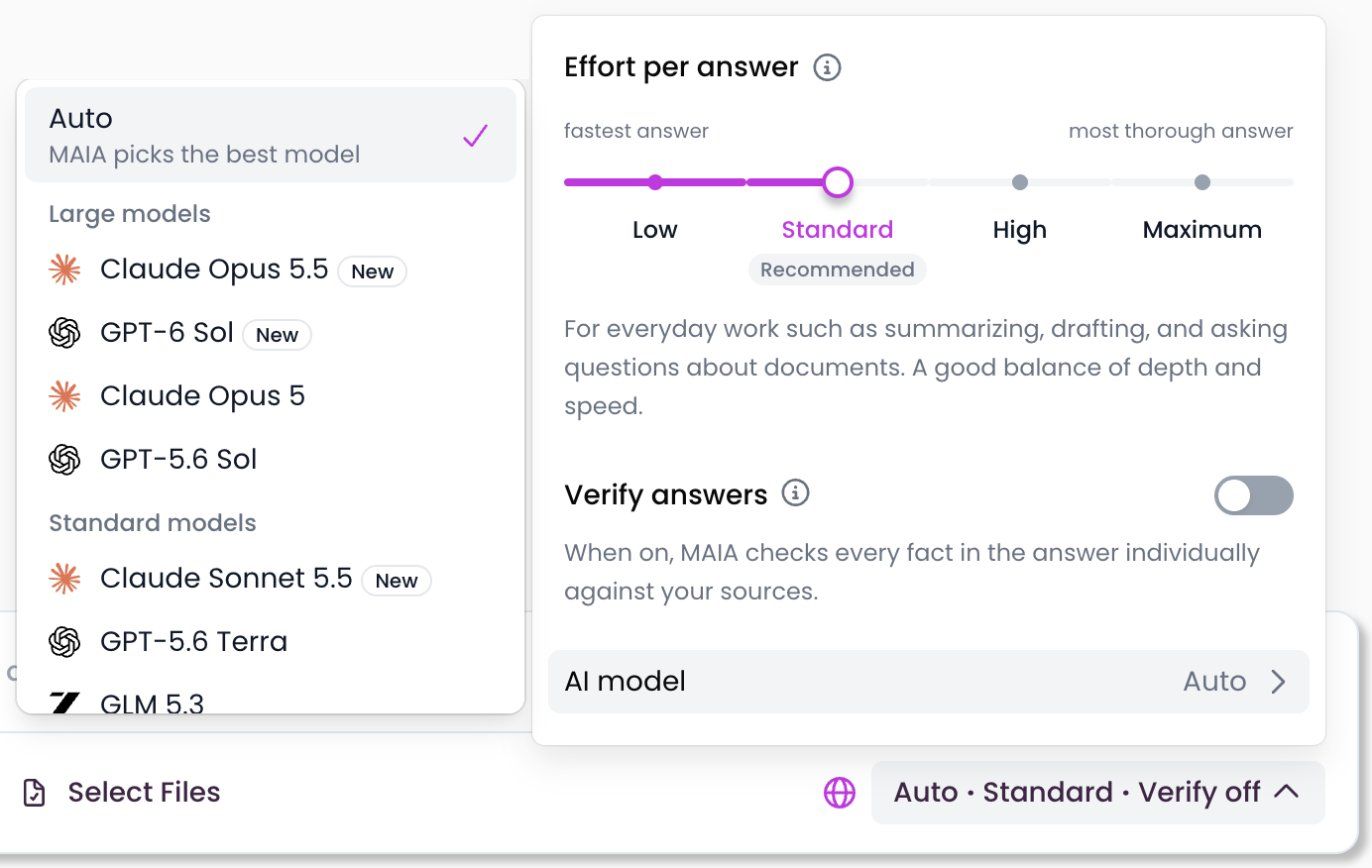
Each model appears only once in the list. Where a model has a reasoning variant, MAIA uses that variant, even though the “(Reasoning)” suffix is no longer shown.
Open-weight models: their model weights are publicly available. In MAIA, they're operated by a European provider. See release 1.23.
File support: All models work with all file formats MAIA supports, because MAIA prepares files in a separate analysis step first.
Addition of new models
Section titled “Addition of new models”We’re constantly evaluating and testing new base models. Once we can ensure that a new base model is available GDPR-compliant, works well for the use cases our customers have, and we can provide it in a reliable way, we will add it to the available models.
Auto (default)
Section titled “Auto (default)”“Auto” is the default. MAIA then picks the right model for each message.
How Auto picks:
-
Check per message: MAIA looks at your question, the selected files and the effort level.
-
Choice: Based on that, it picks a model from a small set we have tested for “Auto”, for example a faster model for easier tasks and a stronger one for harder tasks. We adjust which models belong to that set over time.
-
Switching within a chat: Within one chat, “Auto” can pick a different model from message to message.
You select new models yourself at first. We only let “Auto” use a model after sufficient testing. If a model's allowance is used up, “Auto” uses another one.
Transparency: The model “Auto” picked is shown on your message. 
Choose a model yourself
Section titled “Choose a model yourself”-
Click the answer settings to the right below the input field, for example “Auto · Standard · Verify off”.
-
Click “AI model”.
-
Pick a model from the list. Below the input field, its name then replaces “Auto”.
How long your choice applies:
- In the chat: The model applies to all further messages in this chat until you change it. It's still set when you reopen the chat later.
- In new chats: If you pick the model for the first message of a new chat, MAIA also uses it for your next new chats. Changing it in an existing chat doesn't change the default for new chats.
- Model no longer available: If a chosen model no longer exists, MAIA shows a notice and switches to an available model.
Reasoning and effort
Section titled “Reasoning and effort”Many models support reasoning. The model first “thinks” internally about a request before it writes the actual answer. It uses extra intermediate steps (“thinking tokens”) that help with complex tasks. These tokens aren't visible.
How much MAIA reasons is no longer set by picking a separate model variant, but by the “Effort per answer”: the higher the level, the more MAIA researches and reasons. See Answer settings.
Certain models have a usage allowance per person and model that depends on your licence and resets regularly. Once a model's allowance is used up, you can't pick it in the list until it resets. If you need more, contact your workspace admin or support@getmaia.ai.