
Usage limits
How usage limits work in MAIA, where you see your usage and what happens when you reach a limit.
Depending on your workspace's plan, usage limits apply to your requests to MAIA. You can tell from your settings: if “Usage” is listed under “Account”, usage limits apply to you in this workspace. If it isn't, this article doesn't affect you.
The limits apply per person and workspace. If you're a member of several workspaces, each one has its own limits.
The limits at a glance
Section titled “The limits at a glance”| Limit | What counts | Resets |
|---|---|---|
| Current session (5-hour limit) | requests to all models | 5 hours after the session starts. The session starts with your first request. |
| Weekly limit | requests to all models | once a week |
| Premium model allowance | requests to premium models only | once a week, together with the weekly limit |
What counts is not the number of requests but how much computing an answer needs. How much an answer counts therefore depends mainly on the model and the effort you set. Premium models are the largest and most demanding models in the list. A request to a premium model counts towards all three limits.
How high your limits are depends on your seat: they're higher with a Max seat than with a Pro seat. You can see which seat you have on the “Usage” page under “Your seat”.
View your usage
Section titled “View your usage”- In the sidebar, click “Settings”.
- Under “Account”, click “Usage”.
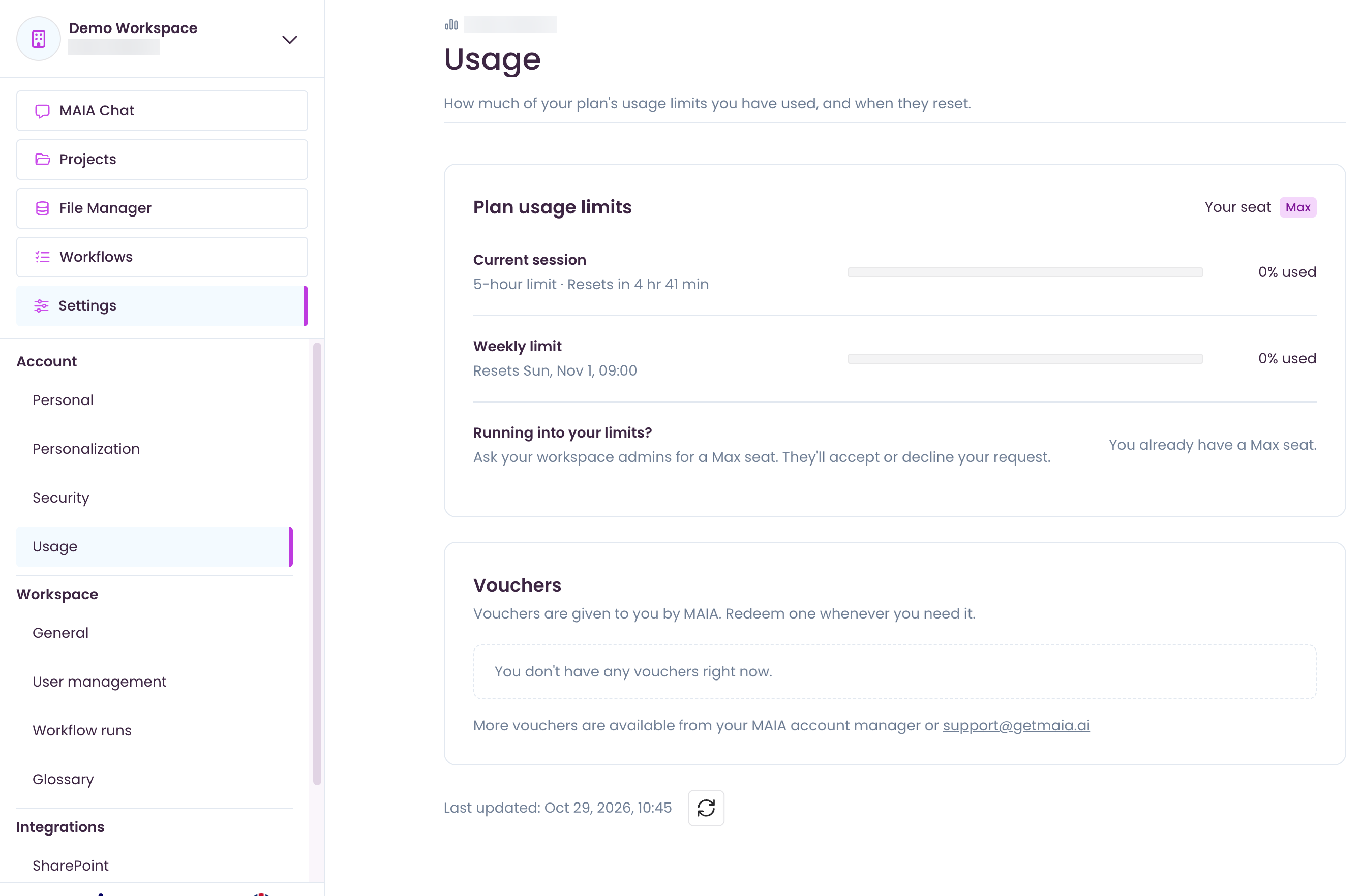
Under “Plan usage limits” you see how much of the current session and of the week you've used, in percent, and when each limit resets. If no session has started yet, it says “Starts with your next request”.
MAIA also lets you know in the chat: once you've used 80% of a limit, a notice with the link “View usage” appears below the input field.
When you reach a limit
Section titled “When you reach a limit”Premium model allowance used up: you can't pick premium models until the allowance resets. In the model list they show “This week's premium allowance is used up”. You can keep using all other models and “Auto”; “Auto” then only picks models that aren't premium.
Current session or weekly limit used up: MAIA answers with a fallback model until the limit resets. So you can keep working, but the answers come from a smaller model. Below the input field and on the “Usage” page you can see until when this applies.
Usage of the fallback model is limited too. Once it's used up, you can't send requests until the next reset. MAIA then shows you when you can send requests again.
Make your limits last
Section titled “Make your limits last”- Effort: the “Maximum” level does the most research and reasoning, so it uses your limits faster than the other levels. MAIA points this out in the answer settings. “Standard” is enough for most questions. See Answer settings.
- Model: with “Auto”, MAIA picks a smaller model for easier tasks. If you pick a premium model yourself, you use your premium allowance faster. See Model Selection Reference.
Get more usage
Section titled “Get more usage”Redeem a voucher
Section titled “Redeem a voucher”Vouchers are given to you by MAIA. A “Usage reset” voucher resets your current session and weekly usage to 0%.
- Open “Settings” > “Usage”.
- Under “Vouchers”, click “Redeem” next to the voucher.
Some vouchers are only valid until a certain date; this is shown on the voucher. You can get more vouchers from your MAIA account manager or via support@getmaia.ai.
Request a Max seat
Section titled “Request a Max seat”If you regularly run into your limits, you can ask your workspace admins for a Max seat.
- Open “Settings” > “Usage”.
- Click “Request Max seat”.
- Under “Why do you need it?”, describe what you're working on and how often you hit your limit.
- Click “Send request”.
Your request is then listed under “Your requests” with the status “Pending”. Your workspace admins decide on it.
For admins: requests and usage
Section titled “For admins: requests and usage”In your workspace's user management you see:
- Max seat requests: open requests with email address, date and reason. “Complete” or “Reject” only records your decision. You change the seat itself in the table below, in the “SEAT” column. If no Max seat is free, contact your MAIA account manager. See Manage your workspace.
- Limit hits (90d): how often a person reached a usage limit in the last 90 days.
- Resets: how many vouchers a person can still redeem.
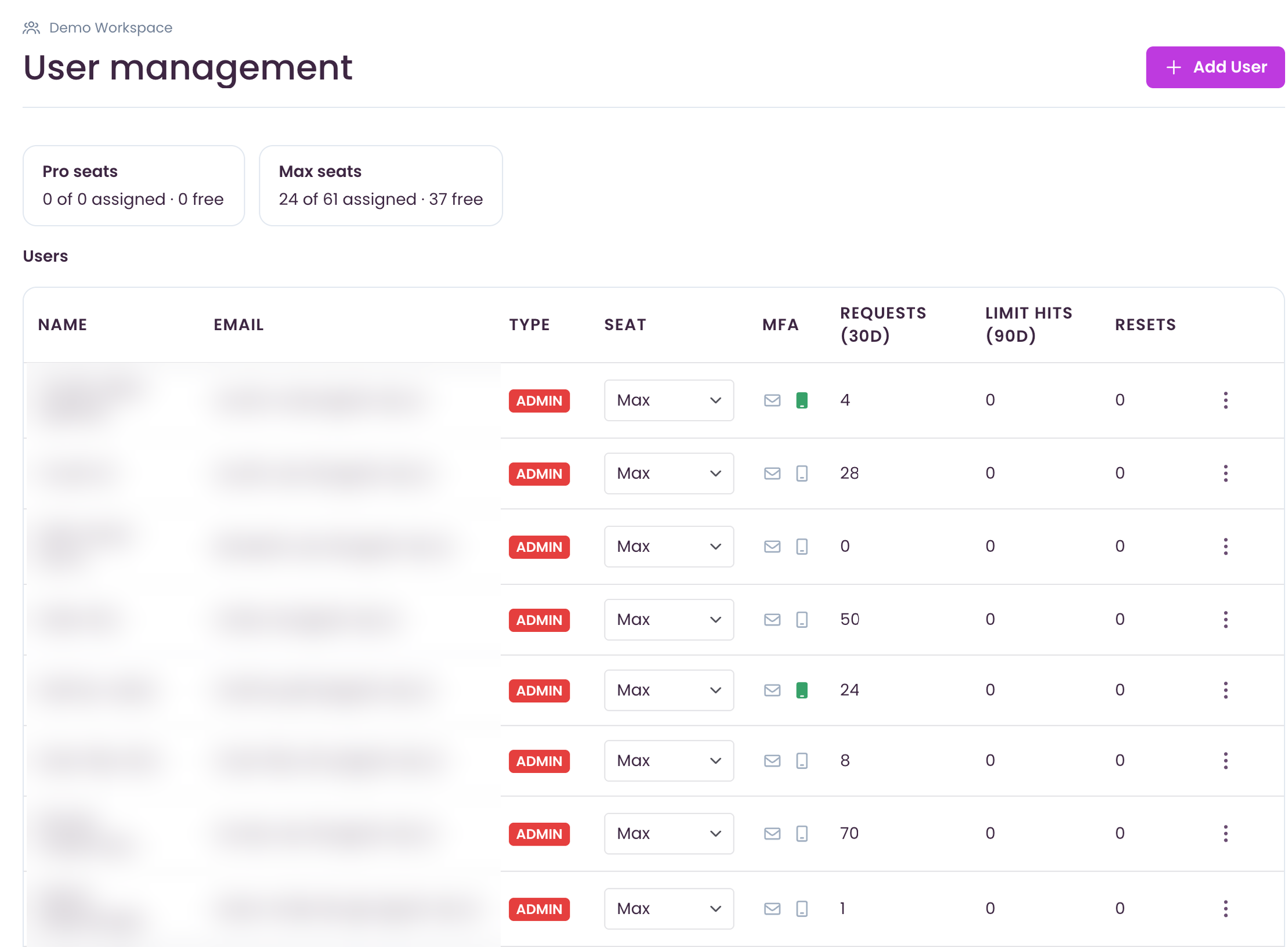
Advanced Document Analytics (ADA) has its own page allowance for the whole workspace.