

Connect services and use them in chat
Connectors let MAIA use supported services through your own account.
Connectors let MAIA use supported services through your own account. Four separate decisions control access: the workspace allows a connector, you authorize an account, you select it for the chat or workflow step, and you approve actions that require confirmation.
Connect your account
Section titled “Connect your account”- Open Connectors and choose an available service from the catalogue.
- Review the service and the requested access.
- Connect the intended account through the provider's sign-in flow.
- Check the connection state before returning to chat.
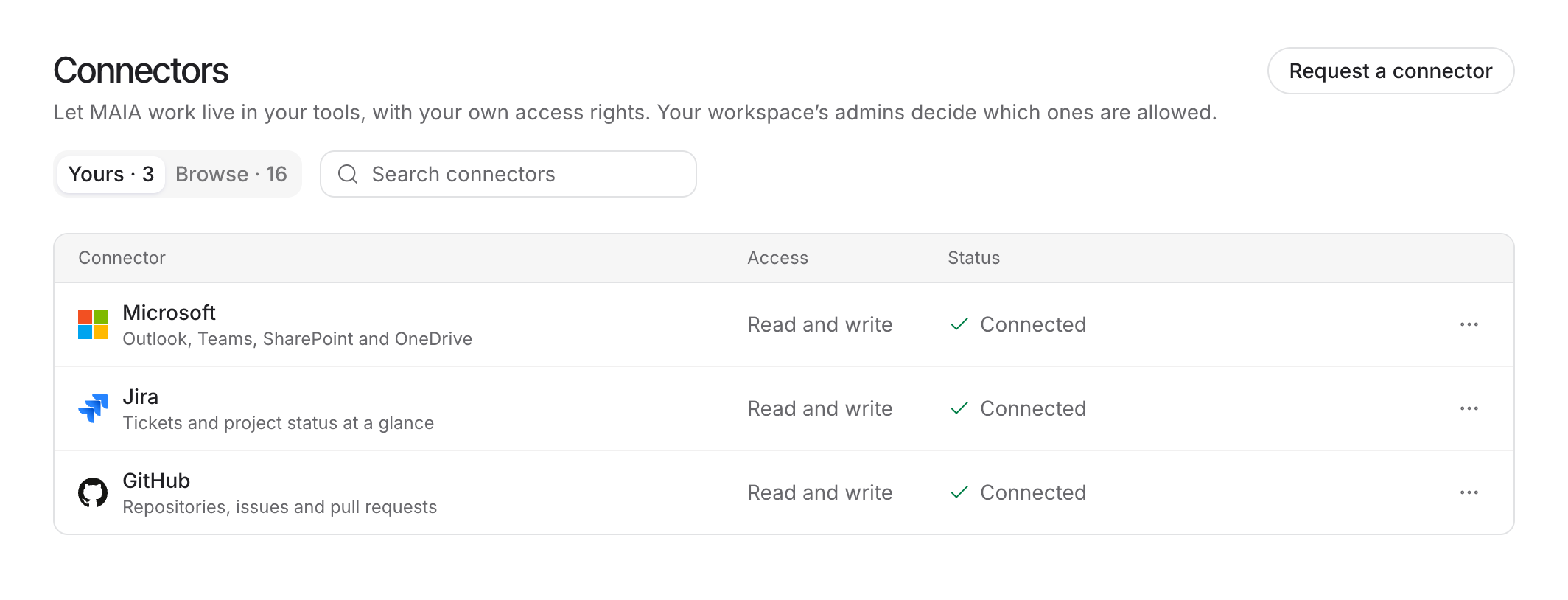
An admin must allow the connector first. If it is unavailable, ask an admin to review workspace integration settings. The catalogue and available actions depend on the rollout and your workspace; a provider name does not imply every feature of that provider is supported.
Select it for a task
Section titled “Select it for a task”Choose the connector in the chat's tools/source controls or in the relevant workflow step. Connecting an account does not make every service active in every conversation. Check the selected service and account before requesting a search, update or other action.
MAIA uses your permitted access in that service. It cannot use documents or records your account cannot access. Workflow actions use the runner's account rather than the workflow author's account. A project does not automatically select connectors for every chat.
Review actions
Section titled “Review actions”Authorized read actions do not need a separate confirmation for each call. Write actions show the action and affected destination before execution. You can grant revocable Always allow for eligible, non-destructive writes. Destructive actions require a fresh confirmation each time, even if another write was previously allowed.
Review the actual recipient, record, file or destination. Cancelling a request cannot undo an action that already completed in the external service.
Reconnect or disconnect
Section titled “Reconnect or disconnect”If access expires, reconnect the intended account and check its permissions. Disconnect a service when you no longer want MAIA to use it. Review stored write-consent choices separately where offered. An admin disabling the connector blocks future calls; it does not reverse completed actions.
The supported route uses the curated catalogue. Adding arbitrary custom MCP server URLs is not part of the current connector setup. For synchronized files, see the separate SharePoint and Outlook guidance.